 Qtractor An Audio/MIDI multi-track sequencer
There are some small features in Qtractor that aren’t well-known or documented. Let’s discover them.
The Qtractor projects directory (the default location for projects) can be defined in templates.
Before saving the template, go to session properties: File > Properties.
In the “Directory” field, indicate the location you want to save your projects. From now on, every time you open Qtractor with that template, this will be the default directory for your projects.
Qtractor allows a track to have overlapping clips.
In these cases, the clips above it prevent access to the background clips. To access them:
The top clip will move to the background, allowing you access. If there are multiple clips overlapping, repeat the process until you reach the one you want to edit.
Want to zoom in as far as possible on a specific event or clip with a single click? Want to zoom out as far as possible for an overview with a single click?
In both the sequencer and the MIDI editor:
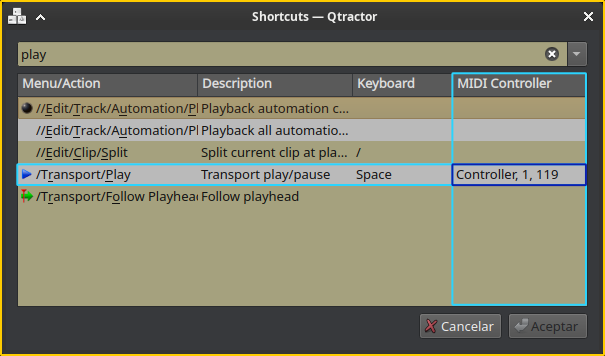
This allows you to trigger any Qtractor command from your MIDI controller. (Functionality not available in the MIDI editor.)
In the sequencer, go to: Help > Shortcuts.
If you click on a piano key and drag up or down, the entire row of events corresponding to the note is selected. If you continue dragging, all rows of the affected notes are selected. If you press the 〔Ctrl 〕key during the process, you deselect.
Although it is not a recommended practice, quantizing MIDI recordings can be useful for certain tasks. The option is located in: View > Options > MIDI { Capture/Export: Quantize
In the Plugins window:
In the “Time” toolbar, left-click on the seconds. Now scroll the mouse wheel. This also works with milliseconds, minutes, and hours.
Texts in Qtractor support unicode. This allows you to customize any name with icons: Tracks, Buses, Plugin Aliases, etc.
I find it useful for assigning icons to Bus functions so I can easily recognize them.
Examples of bus icons by function:
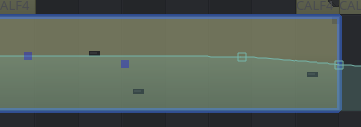
On a selected track, with Select Mode set to Automation, use the mouse to lasso-select one or more automation points. Now issue a Copy and Paste. The newly displayed automation points can now be slid left or right (following whatever beat quantize value currently selected) and dropped into place with a left mouse click. Obviously, pressing Esc aborts the paste.
This approach is quite handy since many of the automation points we draw are actually the left-most side of a ramp or slope which matches the value of the preceding point. Of course, the value of the approach scales when we want to duplicate complex patterns we’ve taken the time to design.
It’s not a Qtractor feature, but it’s a trick that can be useful. Add empty clips and edit their names with your annotations, sections, lyrics, etc.